General Information filles.wizzcam.fr
filles.wizzcam.fr is a technical platform, on which users and Performers meet through live chat sessions. Over more than 100,000 registered Performers are using this platform to sell their services.
Browse the Online Performers page, by default you will see all available online Performers, with the help of filters (ie: Categories, Language, Chat Type, Search etc) you can sort out Performers depending on your preferences. Once you click on a Performers you are immediately in contact. You can watch and hear the Performers (if their sound is on), you can talk with them via instant text messages and Performers can answer back in the same way or by voice (if sound is enabled on Performers side).
- Free video sessions - In this part of the website you can chat with Performers in text mode, hear and view them for free. As a Guest, your Free Chat session will be interrupted after 1 min. To get rid of this limitation we recommend you to create an account.
- Free registration - Creating an account is completely free, as soon as you are registered you can Chat for Free without interruptions. Click here to join.
- Free Performers pictures - Every Performer has a personal images gallery that can be viewed for free by accessing their "Complete Profile." Every Performer decides solely which and how many photos they post on their gallery.
- Free Performers videos - Every Performer has the option to promote themselves by recording free videos that will appear in their Profile page. These videos can be watched for free. If no video appears on a profile it means that the Performer has not added any videos.
- Free messages - you can send/receive free text messages to/from any Performer.
- Free emoticons - You can send emoticons chat anytime.
- Give “Loves” to Performers and put a “love” on their videos and photos.
- Add your favourite Performers to your Favourites.
Performers sell their services in their private zone. All services sold by performers can be paid for with credits from your e-wallet. It is a secure and anonymous payment method. There are no additional costs for adding credits to the e-wallet.
List of paid services:
* Bonus
* Virtual gifts: a jewel, a rose and many more
* Request an action from the model. Ex. A striptease
* Interactive sex toy - short or long vibration
* Toy Controller in Private Xclusive Show
* Become a VIP member
* Sneakpeek - take a look at the show
N.B .: If the model does not offer some of these paid services, it is because the model has chosen not to activate them. We suggest you talk to him about it.
If you have an account, you can add credits to make the most of all the advantages of filles.wizzcam.fr. Click here to access all the means of payment available in your country.
No, there’s no specific software needed to watch the performers.
Yes, filles.wizzcam.fr is available on phones and tablets. Type filles.wizzcam.fr into the search bar of your phone or tablet’s browser and you will be redirected to the mobile version of the site.
Information on adding credits
It is a simple, anonymous and completely secure way to pay for model services. At any time, you can see the credits available in your E-Wallet.
Step by Step instructions:
- log-in to your account,
- Click on Add credits button,
- Choose your desired payment method (credit card, phone, SMS, etc.):
- For credit card billing, select desired credits package and press the Credit Card Payment button. On the next page add your credit card details, click the Submit button and you're done (if transaction is successful).
- For Phone or SMS billing, check the details provided on the "Upload Credits" page - "Phone / SMS" section. Note: If you do not see a Phone / SMS billing option, it means that this payment method isn't available for your country.
The same procedure applies to the case of adding extra credits to your balance.
On the Add Credits page, there are payment methods marked with the text “Best value”. This means that you can get VIP videos of the models you want for free by choosing these payment methods.
Your personal data is always protected and we highly respect your privacy.
See also our Privacy Policy.
No, there are no recurring charges.
You can use any credit or debit card that has a CVV/CVC code.
Yes, filles.wizzcam.fr uses a totally secure connection. Your personal and credit card data is encrypted, guaranteeing complete security.
Transaction dates can differ slightly depending on your bank.
If there is suspicion of fraud or unauthorised transactions, filles.wizzcam.fr will carry out an identity check.
This is mentioned in the General Terms and Conditions of Use that you signed when you created your account (art. 10).
You can reach our billing department HERE. You will be redirected to the technical support team, use this Contact only for billing related questions. Additionally a detailed credits E-Wallet FAQ is provided on that page.
In case of other problems or difficulties, fill out our Contact Form. Please be as detailed as possible in your problem description.
For Epoch billing Support page at Epoch.
Account Information
Creating an account is free and takes a few seconds.
Just click on Join Now Free at the top menu, fill in the Registration Form and then click the Join Now Free button. Now your free account is ready to go. We do not require email confirmation for your free account. However, our system will automatically send you an email -- the email will contain your account user name and password.
Keep your log in details in a safe place.
If you have not received the confirmation email, log into your account, select "My Account - Personal Information" and then click on "Click here to receive the confirmation email".
Yes, as long as you don't use these accounts for inappropriate purposes, there is no problem with it.
You may use our Lost Password form to reset your password. You'll need to provide your user name and email. We will send you a new password via email.
In case you do not receive our email; first make sure you've also checked the Spam folder, if the email is nowhere to be found, add our email address to your Contacts list (Safe list) and use "Lost Password" feature again.
You can create a new account, anyhow if you want to recover the one you don't remember about, please Contact Us.
Your username cannot be changed, but you may create another account with the new username that you want, using the same email address.
To keep your account safe, this can only be done by our support team. Please Contact Us.
Once logged in, your credits are displayed in the menu bar on the top right of the screen.
You can also see your credits balance by navigating to the “Your Account” page or after having clicked on Enter a Private Show from a free video Chat room with a Performer.
Bank wires take around 2-3 business days. After making the bank wire, do not forget to send us an e-mail at with the reference of your wire to notify us.
By default, by creating an account on filles.wizzcam.fr, you also subscribe to the site notifications. If you want to unsubscribe, you can manage notifications from your Account.
Go to "Your Account" and click on the link Close your account at the bottom of the page.
If you want to reactivate your old account, Contact Us, you will receive a reply quickly.
No, credits cannot be transferred to another account. If you close your account and you still have credits left, they will be lost.
Questions regarding Performers (models)
Definitely, Yes ! All online Performers are broadcasting live.
We do not recommend to exchange any kind of personal information with Performers such as, but not limited to: addresses, emails, phone numbers, instant messenger IDs and/or any other kinds of information. If you do so you are personally responsible if any of your information’s are misused.
While with a Performer in the free video session, click on the Model Information link. You will find information about the Performer age, body measurements, price per minute, personal description and other valuable information.
You can also access the pics and videos (if available), the schedule (if completed) and you may view comments left by other users after a Private Session with that Performer.
When you’re in a free video chat room with a Performer, click on the Messages link, and you will be able to write your message for the Performer.
From the "Your Account" page, click on the Messaging button. From this page you have access to your Inbox messages and you can also check your Sent messages.
Additionally, an icon on the menu bar notifies you of new/unread messages (top-right corner). Clicking that will also take you to your messages Inbox Page.
A green tick is displayed to the right of your message when the Performer has read it.
You must click on the cross next to the message you want to delete.
Add to My Favourites links are available on the following pages (click on the star):
- Online Performers' free video Chat Session,
- Online and All Performers - Profile page,
- Private Session page.
Yes, you can be alerted as soon as a performer you have selected in your favourites list connects.
Just go to your account, Notifications section.
Then you need to subscribe to notifications and choose how often you want to receive them.
Performers are responsible for the times they are online and have no fixed schedule.
However, if you want to know the times at which a Performer is usually online, you can go to their Profile page and look at their show schedule.
You can rate a Performer with 1 to 5 stars after you Exit from a Private Session. A notification window will ask you if wish to rate that Performers. There is no obligation of giving a rate.
Same as the rating option. Comments are available after you're leaving a Private Session. In the notification window, below the rating stars you'll see a comment form where you can write your impressions.
Yes, there are models that are streaming on multiple platforms at the same time. The rules of this site do not preclude this. If this bothers you, in free chat, you can ask to the model to log out of other platforms during your private show.
The Daily Top 5 is a ranking calculated according to the bonuses that performers receive in one day. Performers’ position in the Daily Top 5 is displayed in their Video Chat, as well as the position of the performers close to entering the Daily Top 5.
filles.wizzcam.fr is not responsible for what a performer does or does not do during a private show. It is up to you to agree directly with the performer. You can also rate the private show to help assess the Performer.
The information is displayed in the model's chat room, only for the first 50 models of the contest.
Questions regarding private shows
If you decide to buy a service from a Performer you need to enter in the Private session of the Performer. Before entering you can see the Performers price per minute it is published next to the enter button of the Private session.
Beware that every Performer is free to set up their own price and is free to decide to sell you a service or not.
If you don't have credits on you E-wallet when you click on the button enter Private session you will automatically be redirected to the page adding credits to your E-wallet.
You may exit from a Performers Private Session by pressing the Leave button or by simply navigating to a different area of the site.
Please notice that the payment system has a rounded up pay per minute. For example: if you spend 1 second in a Private Session the Performer will charge you for 1 full minute. Spending 1 minute and few seconds = the cost of 2 minutes and so on.
After leaving a Private Session you have the possibility to rate the Performers services with 1 to 5 stars as well as write a comment which will appear on that Performers Complete Profile.
The price of a private session depends the Performer. The Performer sets up her own price.
You are informed of this price before entering a private session. A Performers price per minute is also visible in their Complete Profile page. All private sessions are charged by the full minute.
When you click Enter Private Show, you have the choice between Enter Private Show or Enter 100% Xclusive Show (only for Performers who enable this feature).
During a Private Show, other users can join you.
During a 100% Xclusive Show, you will be alone with the performer and you will have their full attention.
SneakPeek allows you to enter an already started private show and attend the model's show for a few seconds. The model must have enabled this feature.
Yes, it is possible to add more credits to your balance while being in a Private Session. Just press the "add credits E-Wallet" button located on bottom-left side of the page. All add credits options for E-Wallet will appear in a small pop-up window. See "How do I add credits to my E-Wallet?"
Private Sessions interactivity technical questions
To use this feature you will need a microphone installed to your PC. You can send/enable your audio only in one Private Session. Up to four users can join a Performer Private Session at the same time. However, only the first connected user will be able to send audio. It is possible to enable/disable your audio at any time, by default this feature is always disabled.
Cam2Cam feature is available in Private Session only for first connected user. Several users can join a Performer Private Session at the same time. However, only the first connected user will be able to share his webcam.
Using Cam2Cam requires a webcam to be connected and installed on your computer. It is possible to enable/disable your webcam at any time; by default this feature is always disabled.
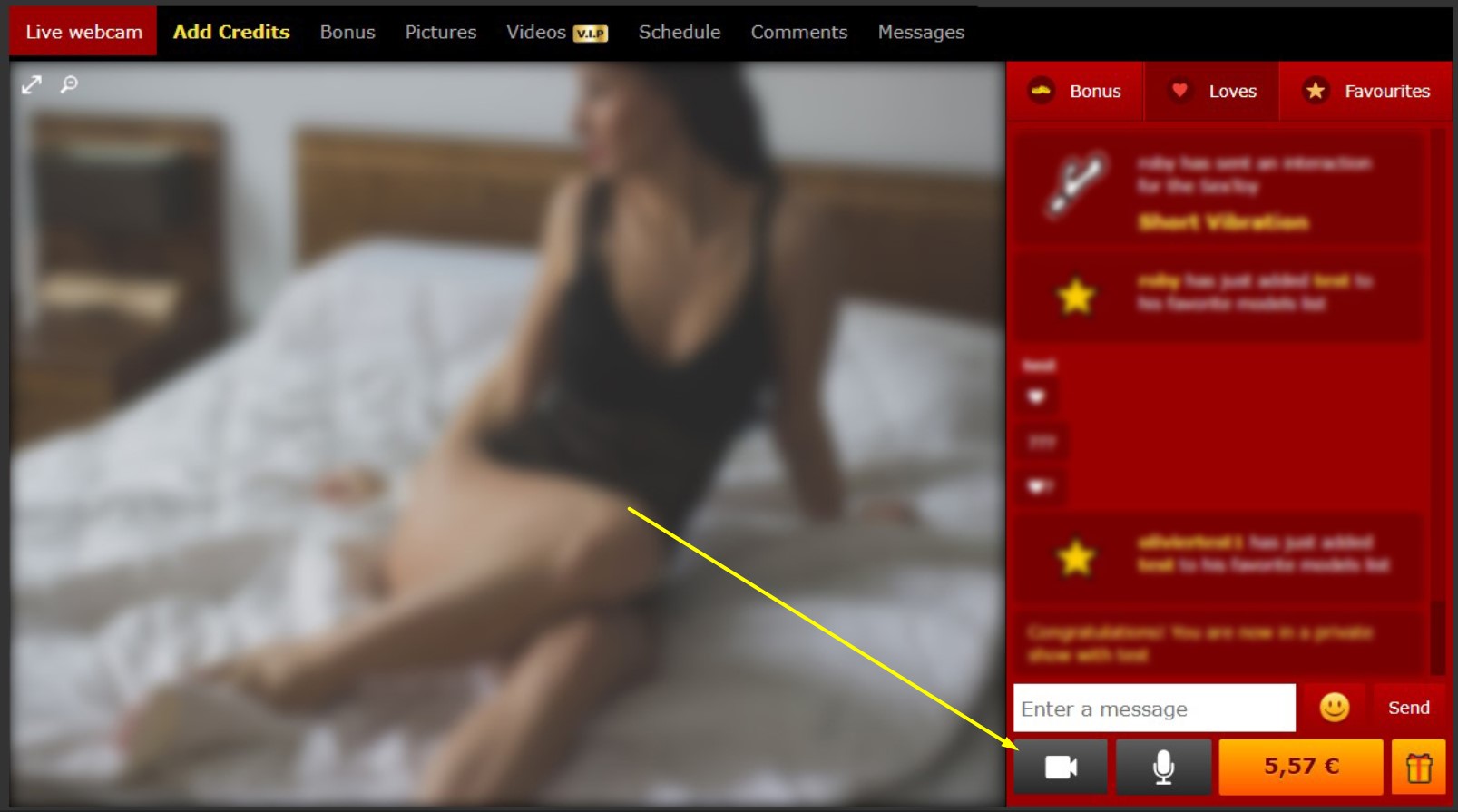
Check these steps:
- While in Private Session make sure you have enabled "Your Microphone" (small icon located in the right side of chat box);
- Remember that you can use this feature only if you are first connected user. If there is no Microphone icon available in the page, it means that another user joined that Private Show before you;
- Make sure your microphone is plugged into the proper port (usually pink one);
- Some microphones are equipped with ON/OFF button, check for it;
- From your desktop or control panel access Audio/Sound Settings > Recording > and make sure Microphone and your Sound Device are properly selected; also check out your microphone volume.
If you would like to test your microphone prior to join a Private Session, use this page: Microphone Tester
To troubleshoot your webcam problems:
- While in a Private Show make sure you have enabled "Your Webcam" (small icon located in right side of chat box);
- Remember that you can use this feature only if you are the first connected User. If there is no Webcam icon available in the page, it means that another User joined that Private Show before you. Your webcam will not be available in this event;
- Make sure that your webcam is not currently in use by another application.
If you would like to test your camera prior to join a Private Session, use this page: Camera Tester
The SexToy Controller function is not yet available on cell phones. You can use the computer-based version to access this feature.
For Windows and Android, we recommend using the latest version of Google Chrome. For Mac and iOS, we recommend Safari.
Please test the site on a different browser than the one you normally use. We recommend that you use the latest version of Google Chrome for Windows and Android. For Mac and iOS, use Safari.
Note: Remember to clear your browser's cache and cookies before testing.
Features and Functions of filles.wizzcam.fr
If the Performer has VIP content, you can subscribe on their Profile page, notably in the Photos & Videos tabs. Performers define the price of this themselves; the amount of the subscription will be deducted from your Electronic Wallet each month.
Important note: If you do not see any mention of “VIP” on a Performer’s Profile page, this means that this service does not exist for this Performer.
You can easily cancel your VIP subscriptions; just log-in to your account, go to “VIP subscriptions” page and use Stop re bill option - which is available for each of your subscriptions.
Each visitor can virtually Love any online Performer by giving a "Love" from the Free Chat session (you will notice a Loves button above the chat box) or from of the page of all the "Live webcams", by clicking on the small heart in the corner of its photo or video.
On the "Live Webcams" page, you can filter by "Loves" in the menu (Sort by option).
The more "Loves" a Performer has during last hour interval, the better her position will be on the Online list.
Yes you can give your virtual Loves to as many different online Performers as you wish, but only once per 24 hours to the same Performer.
Well that's something to feel, not something to be informed about.
A bonus is a small amount of money that any user with credits in his account can offer in Free Chat session to any of the Performers. One bonus value can vary from 0.1 to 50 Euros.
What is offered for that bonus is at the Performers own discretion. You should agree directly together.
It's entirely up to you, for example you can offer some bonus if you like to attract some Performers attention if free Session, or for an outstanding performance in a private session.
Yes you can, but on your own risk, these requests have to be discussed with the Performers upfront in the free session. So if you expect something for the bonus, talk first about it with the Performers, if they accept your proposal you are good to go. It is a negotiation between you and the Performers.
Actions are a group of interactive items that a user can send to a Performer in both Free Chat and Private Chat mode, if activated by Performers.
Actions are divided in 3 categories:
- VIRTUAL GIFT: user can send virtual gift (rose, teddy bear, diamond etc)
- LIVE ACTION: user requests a live action (request a kiss, a live dance etc)
- INTERACTIVE TOY: user can send interactive toy action (allow user to send vibration to Performer's smart sex toy)
By default the Actions are disabled, in order for a Performer to take benefit of these features, each category has to be enabled.
For each category a Performer can pick a maximum 5 items/actions, that once enabled it will become visible on customers side, in live chat page.
As soon as a user selects an action or makes a request, all participants in the Chat will be notified by a notification in the Chat window which will be accompanied by a small live video animation and a specific sound.
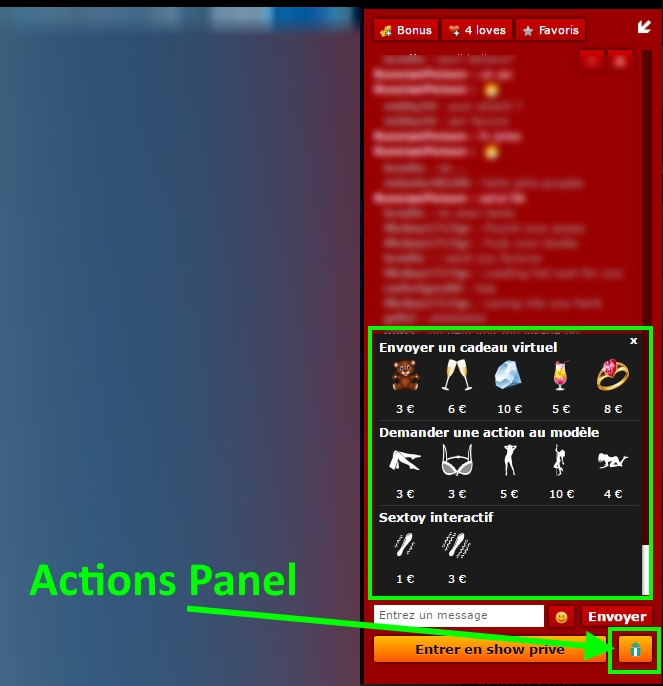
Each item/action can have a different price. The Performer sets the price independently.
The price will be deducted from your E-Wallet with each gift sent to the Performer or as soon as you request a specific action.
This category was designed for the smart sex toy, like sound vibrators (ex. OhMiBod).
Currently there are only 2 actions available:
- Short Vibration: the user will generate a specific sound that will make the smart sex toy vibrate for a short time,
- Long Vibration: that will make the Performer's toy vibrate for a longer time.
No software is required to use the interactive sex toy.
You have the option to interact with your favourite Performers' sex toys.
To make sure that the model has interactive toys, just go into the model chat and check that the sex toy icon appears at the bottom right hand corner of the chat window.
To be able to control the Performer's interactive sex toys, you have to be in private show and in "Xclusive", the interaction function can only work when you are alone with the Performer.
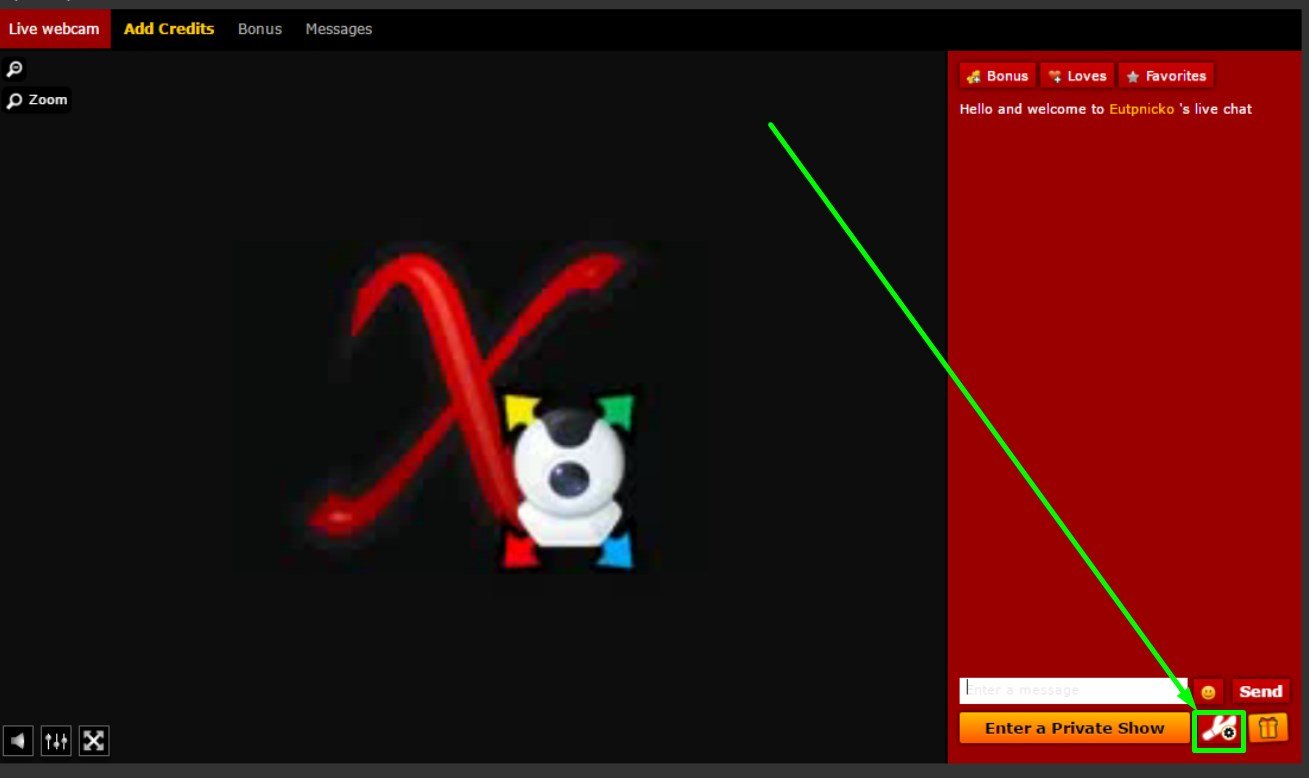
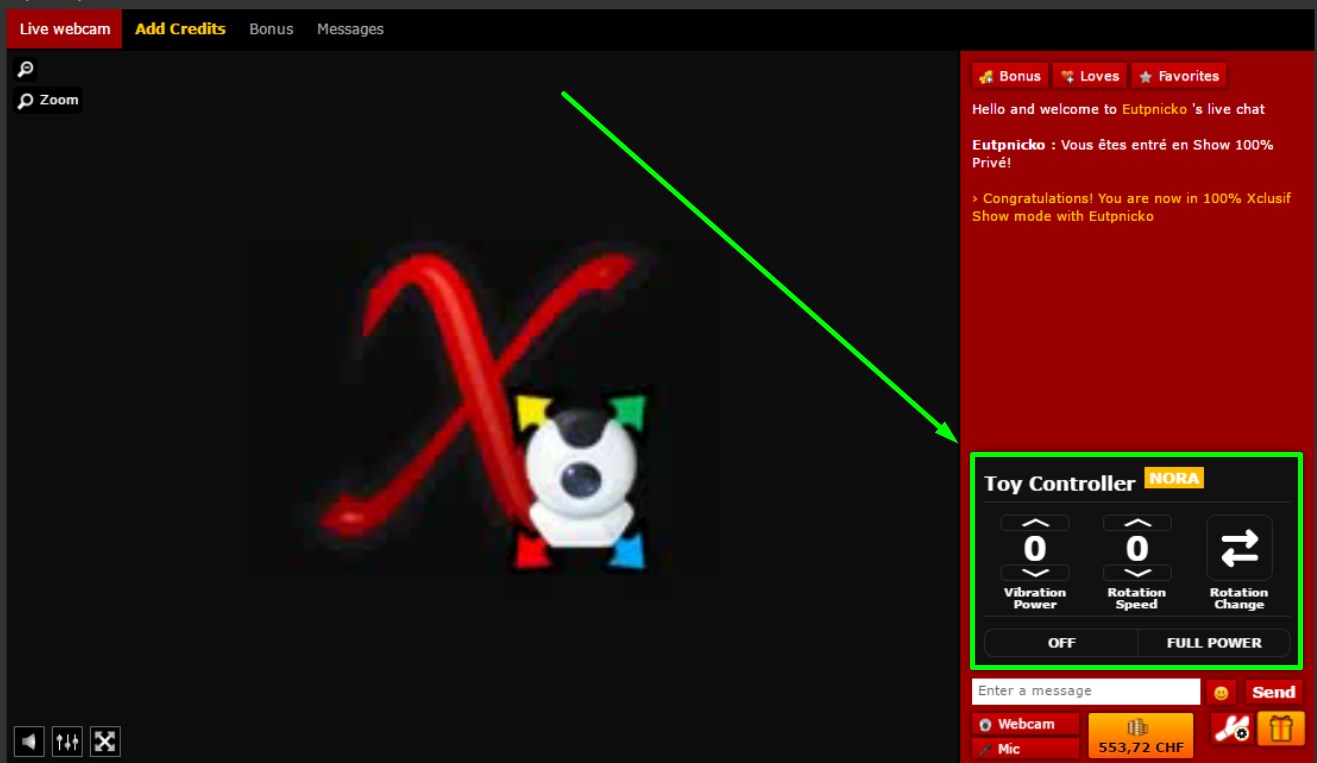
The window that opens allows you access to control:
- the vibration of the toy (1 to 6)
- the rotation speed of the toy (1 to 6)
- the rotation direction (in one direction or the other)
Protection from adult sites
To protect children from adult content, you can use these tools:
- Use the Family Sharing page.
- To access this: Settings on iOS or System Preferences on macOS.
- With Family Sharing, you will be able to see what each of your children is doing. Go to Content & Privacy to set restrictions on access to adult content.
- Use Google Families from a Google page.
- Download the Google Family Link app for Android and iOS devices: you'll be able to manage how your children use their devices, and if need be put limitations on usage.
- Use the Microsoft Family Safety site to create an account.
- To configure web browsing limits: Microsoft Edge browser > Settings > Parental Control: features (such as activity reports, content filter...).
- To use multiple Microsoft accounts on a shared computer or on a Windows account: Windows settings > Accounts > Family and other users.
Contact information
For E-Wallet related information please access this page: Billing Support.
For any other questions or suggestions please fill out this Contact Form.
Company info: